Ayan
AyanPower BI Gantt Chart Is Now Built In: The Complete Guide (Setup, DAX, Matrix Method and Fixes)
Power BI now has a native Gantt visual. This guide shows the data it needs, copy-paste DAX for progress, milestones and status, a matrix Gantt that works without preview features, and when the AppSource visual still wins.
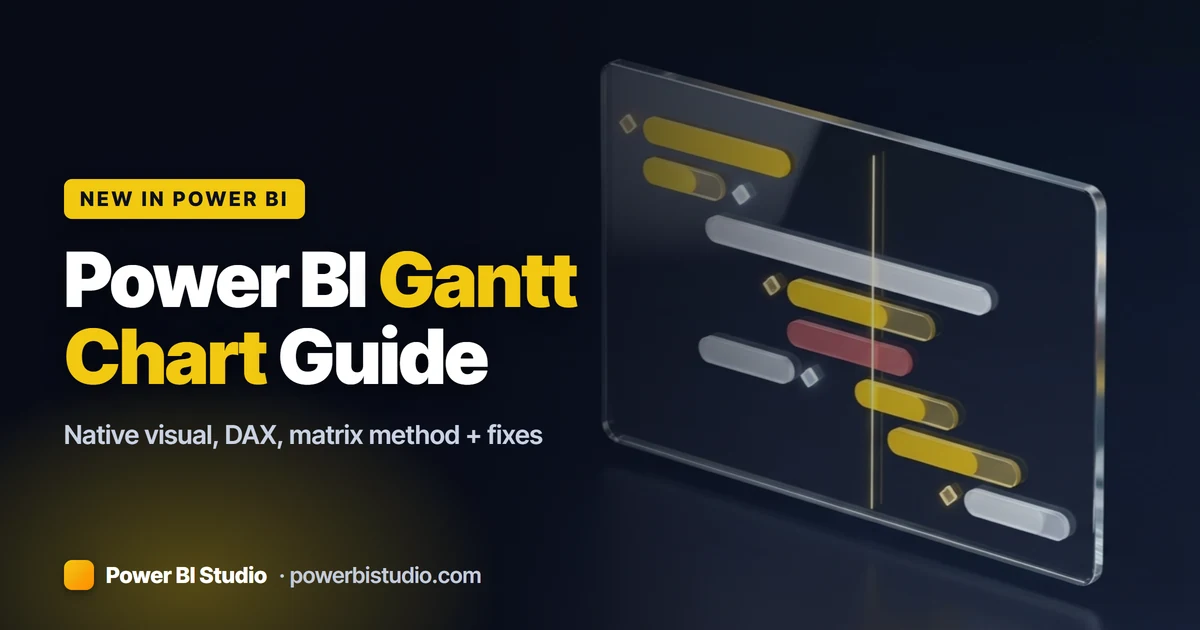
Yes, a Power BI gantt chart no longer needs a download. Microsoft added a native Gantt visual (in preview) that draws task bars from a Start and an End date, shows progress inside each bar and turns any row with a blank End into a milestone. Pick it in the Visualizations pane, add a task name and two dates, and you have a working project schedule.
This guide is for analysts and project leads who want the schedule inside a report instead of a separate tool. You get a sample task table, copy-paste gantt chart DAX, a matrix method for anyone who cannot use preview features yet, a comparison with the AppSource custom visual, and fixes for the errors people hit most.
Key takeaways
- Power BI now ships a first-party Gantt visual in preview, documented on Microsoft Learn (updated 16 October 2026).
- The only required field is the task label. Start and End draw bars, a blank End draws a milestone.
- Use measures for Start, End and % complete so phase rows roll up to the right span and progress.
- Main limits: 1,000 rows, and no documented task dependencies or today line.
- Cannot use preview features? A matrix with conditional formatting gives you a Gantt with zero custom visuals.
- Keep one base colour for bars and save red for late work.
In this guide
- Does Power BI have a Gantt chart?
- Prepare your task data
- How to create the chart step by step
- Gantt chart DAX measures
- Milestones and the today line
- Colours, axis, weekends and sorting
- The matrix method
- Native vs custom visual vs matrix
- Common errors and fixes
- Build a reusable template
- Next steps
- FAQ
Does Power BI have a Gantt chart? Yes, now it does
For years the honest answer was no. Almost every page that ranks for this search still tells you to import a custom visual, because that used to be the only way. That changed when Microsoft shipped a first-party Gantt visual (preview) and documented it in the Gantt visual article on Microsoft Learn, published in September 2026 and last updated on 16 October 2026.
Here is what the native visual gives you out of the box:
- Duration bars from a Start and an End field (both can be measures)
- Progress drawn inside each bar from a % complete measure
- Milestone markers on rows where End is blank
- Up to three category levels, for example Project, Phase and Workstream
- Extra columns beside the task list (owner, status, duration) plus tooltip fields
- One base colour that cascades to categories, bars, milestones and row backgrounds
- A fixed or auto-scaling date axis, shaded days of the week and a zoom axis
Because it is a core visual, there is nothing for your tenant admin to approve, it uses the normal Format visual pane, and its colours follow your report theme. Preview does mean it can still change before general availability, so test it before you rebuild a client-facing report around it.
When a Gantt chart in Power BI is the right visual
Use a gantt chart in Power BI when the question is "what happens when, and are we on track?". Good fits are project plans, product roadmaps, campaign calendars, maintenance windows and onboarding plans with stages. The schedule sits next to the budget, hours and risk numbers that already live in your model, which a separate planning tool cannot do.
Skip it when the reader only needs a count of late tasks (a card does that faster) or when a single view would hold thousands of tasks. My rule: if a project manager would print it and pin it on a wall, it is a Gantt. If they would only glance at a number, it is a KPI.
Prepare your task data for a Power BI Gantt chart
Every method in this guide wants the same shape: one row per task, with a start date, an optional end date and a completion value. Grouping columns are optional but make the chart far easier to read. Here is the sample table used in every example below:
| Project | Phase | Task | Owner | StartDate | EndDate | PctComplete |
|---|---|---|---|---|---|---|
| Website relaunch | Planning | Kickoff | Aisha | 2026-11-02 | (blank) | 1.00 |
| Website relaunch | Planning | Scope and requirements | Aisha | 2026-11-02 | 2026-11-13 | 0.60 |
| Website relaunch | Design | Wireframes | Marco | 2026-11-16 | 2026-11-27 | 0.20 |
| Website relaunch | Design | Visual design | Marco | 2026-11-23 | 2026-12-04 | 0.00 |
| Website relaunch | Build | Front-end build | Lena | 2026-11-30 | 2026-12-18 | 0.00 |
| Website relaunch | Build | Content migration | Omar | 2026-12-07 | 2026-12-16 | 0.00 |
| Website relaunch | Launch | Go-live | Lena | 2026-12-21 | (blank) | 0.00 |
Three rules prevent most problems later:
- StartDate and EndDate must be the Date (or Date/Time) data type, never text.
- Leave EndDate blank for milestones such as Kickoff and Go-live.
- Store PctComplete as a decimal from 0 to 1 and format it as a percentage.
Fix text dates in Power Query
Dates from Excel or SharePoint lists often arrive as text, and then no bars appear. Change the type with the culture of the source so 02/11/2026 is read as 2 November and not 11 February:
= Table.TransformColumnTypes(
    Source,
    {{"StartDate", type date}, {"EndDate", type date}, {"PctComplete", type number}},
    "en-GB"
)
Turn a duration into an end date
If your source only has a duration in days, add the end date with a custom column. Rows with zero days become milestones automatically:
= Table.AddColumn(
    Source,
    "EndDate",
    each if [DurationDays] = 0 then null
         else Date.AddDays([StartDate], [DurationDays] - 1),
    type nullable date
)
How to create Gantt chart in Power BI (native visual, step by step)
This is the fastest route if your Power BI Desktop build includes the preview. It takes about five minutes with the sample table above.
Switch on the preview visual
Look for the Gantt icon in the Visualizations pane first. Preview visuals show (Preview) after their name and can sit below a divider. If it is missing, Microsoft's visuals overview says preview visuals are typically enabled under File > Options and settings > Options > Preview features. Tick the Gantt option if your version lists it, restart Desktop, and update Desktop if neither place shows it.
Build the visual
- Click an empty spot on the canvas so nothing is selected, then select the Gantt visual.
- In the Build visual pane, add Task as the row label. This is the only required field.
- Add StartDate to Start and EndDate to End, or better, the Gantt Start and Gantt End measures from the next section.
- Add the Progress % measure so each bar shows how much is done.
- Add Project and Phase as category levels. You can use up to three.
- Add Owner, Working Days and Status as extra columns.
- Drop anything else (budget, notes, risk) into tooltips so the grid stays narrow.
That is a working schedule. Add a slicer on Project or Owner and the chart becomes a personal task list for each person. The rest of this guide is about making the numbers right at phase level and the chart readable at a glance.
Gantt chart DAX: start, end, progress and status measures
You can drop raw columns into the field wells, but measures give you control over what category rows show. Microsoft Learn confirms that Start and End can both use measures, and that extra columns need measures or aggregations to show subtotals at category levels. These are the measures I put in every Gantt report.
Start and End measures
Gantt Start = MIN ( Tasks[StartDate] )Gantt End =
VAR _end = MAX ( Tasks[EndDate] )
VAR _start = MIN ( Tasks[StartDate] )
RETURN
IF ( ISBLANK ( _end ) || _end = _start, BLANK (), _end )On a Phase row, MIN and MAX give the phase its full span, so Design runs from 16 November to 4 December. On a task with no end date, or the same start and end, the measure returns blank and the visual draws a milestone. If you have real one-day tasks, remove the _end = _start check.
Weighted % complete
A plain AVERAGE of PctComplete treats a one-day task the same as a three-week build. Weight it by duration so the phase bar tells the truth:
Progress % =
VAR _done =
    SUMX (
        Tasks,
        ( DATEDIFF ( Tasks[StartDate], COALESCE ( Tasks[EndDate], Tasks[StartDate] ), DAY ) + 1 )
            * Tasks[PctComplete]
    )
VAR _total =
    SUMX (
        Tasks,
        DATEDIFF ( Tasks[StartDate], COALESCE ( Tasks[EndDate], Tasks[StartDate] ), DAY ) + 1
    )
RETURN
    DIVIDE ( _done, _total )
Milestones count as one day, so they barely move the phase total. That is usually what a project manager expects.
Working days column
Calendar days overstate effort when a task spans two weekends. NETWORKDAYS counts Monday to Friday by default, and both ends are included:
Working Days =
VAR _start = MIN ( Tasks[StartDate] )
VAR _end = COALESCE ( MAX ( Tasks[EndDate] ), _start )
RETURN
    NETWORKDAYS ( _start, _end )
Pass a table of public holidays as the fourth argument if your team needs them excluded.
Status measure (Done, Late, Not started, In progress)
Status =
VAR _start = MIN ( Tasks[StartDate] )
VAR _due = COALESCE ( [Gantt End], _start )
VAR _progress = [Progress %]
RETURN
    SWITCH (
        TRUE (),
        _progress >= 1, "Done",
        _due < TODAY (), "Late",
        _start > TODAY (), "Not started",
        "In progress"
    )
Add Status as an extra column and use conditional formatting to colour "Late" red. One gotcha from the docs: measure formatting may not show in columns or tooltips. If Progress % shows 0.6 instead of 60%, set it under Data format on the General tab of the Format visual pane.
Power BI Gantt chart milestones and the today line
A milestone is a row with a start date and a blank End. That is the whole rule, and it gives you three ways to mark them:
- Leave EndDate blank in the source, as Kickoff and Go-live do in the sample table.
- Use zero-day durations and let the Power Query step above return null.
- Add an IsMilestone flag column (TRUE/FALSE) when your source always fills both dates.
For the third option, return blank from the End measure whenever the flag is set:
Gantt End (flag) =
IF (
    SELECTEDVALUE ( Tasks[IsMilestone] ) = TRUE (),
    BLANK (),
    MAX ( Tasks[EndDate] )
)
Name milestones as outcomes ("Design signed off") rather than activities. Readers scan the diamonds first, so they should read like a list of promises.
Today line on Gantt chart: what you can do
The Microsoft Learn article does not list a today line for the native visual, and that is the feature people ask for most. Until it arrives, add a "Today" milestone row in Power Query so the current date shows as a marker on the timeline:
= Table.Combine({
    Tasks,
    #table(
        type table [Project = text, Phase = text, Task = text, StartDate = date],
        {{"Website relaunch", "Today", "Today", Date.From(DateTime.LocalNow())}}
    )
})
The date updates on every refresh. In the Power BI service, DateTime.LocalNow returns the server's time, which is usually UTC, so the marker can be one day off for teams far from UTC. If a true vertical today column matters more than the native look, the matrix method below draws one.
Format the Gantt chart: colours, axis, weekends and sorting
A Gantt with ten colours and a cramped axis is harder to read than a table. Five minutes here pays off.
Colours that cascade
In the Format visual pane, expand Rows > Color and pick one base colour. It cascades with different transparency so you do not have to format each element:
- Task bars and milestones: 0%
- First-level category background: 70%
- Second-level category background: 80%
- Third-level category background: 90%
- Task row background: 100% (no visible colour)
You can change these defaults in the Format pane or in a custom report theme. If you build your palette in our Power BI theme builder, take the Gantt base colour from that palette so the schedule matches the rest of the report. Need a colour per phase? Select More granular at a category level, or use conditional formatting for status colours.
Date axis: auto-scale or fixed levels
With Auto-scale on, the axis shows one level that switches between years, months and days as you resize or zoom. Turn it off to pin up to two levels, for example months as the primary level and years as the secondary one. You can set a display format for each level or choose Custom and type your own, such as days for both levels with "ddd" on one and "d" on the other.
Shade weekends and style progress
Choose which days of the week to shade in the axis columns. Shading Saturday and Sunday makes a two-week sprint far easier to read. For progress, pick either a transparent white overlay on each bar or a bordered bar with the done part filled in, and set how much of the bar's height the progress indicator uses.
How to sort Gantt chart in Power BI
Readers expect tasks in the order they happen, not alphabetically. The method that works in the native visual, the matrix and most custom visuals is Sort by column:
- In Power Query, sort by StartDate and add an index column named TaskOrder.
- In the Data or Model view, select the Task column.
- On the Column tools ribbon, choose Sort by column > TaskOrder.
Each Task value needs exactly one TaskOrder, so make task names unique (add the phase to the name if two phases share a task called "Review").
Gantt chart in Power BI using matrix (no preview, no custom visual)
Some companies block preview features and custom visuals, and some reports must work in older Desktop builds. The answer is a matrix: tasks as rows, weeks as columns, and a measure that colours each cell where the task is active. You control every colour with DAX.
Step 1: a disconnected date table
Create this calculated table (Modeling > New table) and do not relate it to Tasks. The measure does the filtering itself:
Gantt Dates =
VAR _start = MIN ( Tasks[StartDate] ) - 7
VAR _end = MAX ( MAX ( Tasks[EndDate] ), MAX ( Tasks[StartDate] ) ) + 7
RETURN
    ADDCOLUMNS (
        CALENDAR ( _start, _end ),
        "Week Start", [Date] - WEEKDAY ( [Date], 2 ) + 1,
        "Month", FORMAT ( [Date], "MMM yyyy" )
    )
Step 2: the cell and colour measures
Gantt Cell =
VAR _periodStart = MIN ( 'Gantt Dates'[Date] )
VAR _periodEnd = MAX ( 'Gantt Dates'[Date] )
VAR _taskStart = MIN ( Tasks[StartDate] )
VAR _taskEnd = COALESCE ( MAX ( Tasks[EndDate] ), _taskStart )
VAR _today = TODAY ()
RETURN
    SWITCH (
        TRUE (),
        _taskStart <= _periodEnd && _taskEnd >= _periodStart, 1,
        _today >= _periodStart && _today <= _periodEnd, 0
    )
Gantt Colour =
VAR _cell = [Gantt Cell]
RETURN
SWITCH (
TRUE (),
ISBLANK ( _cell ), BLANK (),
_cell = 0, "#C9CED6",
[Status] = "Late", "#D64550",
"#F2C811"
)Gantt Cell returns 1 where the task overlaps the week and 0 in the current week, so you get a grey today column across every row. Gantt Colour turns late tasks red and everything else Power BI yellow.
Step 3: build and style the matrix
- Add a matrix. Put Project, Phase and Task on Rows, 'Gantt Dates'[Week Start] on Columns and Gantt Cell on Values.
- Open conditional formatting for Gantt Cell, choose Background color, set Format style to Field value and pick Gantt Colour.
- Repeat for Font color with the same measure so the 1s and 0s disappear into the bar.
- Turn off column subtotals and grand totals, and set a small fixed column width so the cells read as a bar.
- Format the Week Start column as "dd MMM" so the headers stay short.
Swap Week Start for Date if you need day-level detail on a short sprint. The cost is width: 90 days of columns needs a wide page or a horizontal scroll.
Native visual vs Gantt chart custom visual vs matrix
Before the native visual, most people used Microsoft's free gantt chart custom visual from AppSource. Select the three dots (Get more visuals) in the Visualizations pane, search for Gantt and add the one published by Microsoft. Its fields include Task, Start Date, either Duration or End Date (one or the other, not both), % Completion, Resource and Legend. Your tenant admin can block custom visuals, so check that before you build on one.
| Native Gantt (preview) | AppSource custom visual | Matrix method | |
|---|---|---|---|
| Setup | Core visual, preview switch | Import from AppSource | Date table + 2 measures |
| Cost | Included | Free (Microsoft) to paid | Included |
| Admin approval | None | Can be blocked by tenant settings | None |
| Milestones | Yes, blank End | Yes in most visuals | Manual (a colour rule) |
| Progress in bars | Yes | Yes (% Completion) | Only as colour or data bars |
| Today marker | Not documented, use a milestone row | Varies by visual | Yes, a today column |
| Dependency arrows | Not documented | Some paid visuals | No |
| Limits | 1,000 rows, preview | Varies by visual | Readable up to about 30 weeks |
| Best for | Most new project trackers | Dependency-heavy plans | Locked-down tenants, full colour control |
My take: start new reports on the native visual. Use the matrix where preview features are blocked. Pick a custom visual only when you truly need something neither of the others can draw.
Power BI Gantt chart with dependencies
Finish-to-start arrows between tasks are the one thing people miss most. The Microsoft Learn page for the native visual does not list task dependencies, and Microsoft's free custom visual does not draw them either. Some paid AppSource Gantt visuals advertise dependency links, so check their licence cost and whether your admin allows them.
My honest view: if task dependencies drive your plan, the plan itself belongs in a scheduling tool. Bring its tasks into Power BI to report on dates, progress and slippage, and keep a "Predecessor" column as a tooltip so readers can still see what each task waits for.
Common Power BI Gantt chart errors and fixes
Power BI gantt chart duration not working
In the AppSource visual, Duration and End Date are alternatives, so filling both confuses it. Duration also needs a whole number, and Start Date must be a plain date field, not the automatic date hierarchy. Right-click the date in the field well and choose the field name instead of Date Hierarchy.
No bars at all
Your dates are almost always text. Check the column type in Power Query and use the culture-aware type change shown earlier. Also check that the page or visual filters have not removed every task.
Every task shows as a milestone
End is blank or equal to Start for every row. Check that EndDate actually loaded, and that the Gantt End measure is not removing real one-day tasks.
Progress shows 0.6 instead of 60%
Measure formatting may not carry into columns and tooltips. Set the format with Data format on the General tab of the Format visual pane.
Static colours are ignored
With More granular on, static colours might not apply at some category levels or to tasks that appear in more than one category. Use conditional formatting instead.
Too many tasks
The native visual supports up to 1,000 rows. Add a page filter for active projects or a relative date filter for the next 90 days. Nobody reads a 1,000-row Gantt anyway.
Build a reusable Power BI Gantt chart template
Once one Gantt report works, turn it into a template so the next project takes minutes, not an afternoon. A Power BI template file (.pbit) keeps your measures, visuals and theme but not the data.
- Build the report on the sample Tasks table, with every measure in this guide.
- Apply your theme and set the Gantt base colour from it.
- Replace hard-coded file paths with a Power Query parameter such as TaskFilePath.
- Go to File > Export > Power BI template, add a short description and save.
- Opening the .pbit asks for the parameter value, loads the new data and the chart is ready.
If you would rather not start from a blank canvas, browse our Power BI templates for a finished project layout, then add the Gantt visual to it.
Conclusion: your Power BI Gantt chart next steps
The Power BI gantt chart finally works without a download. Start with a clean one-row-per-task table, use measures for Start, End and Progress % so the phases roll up correctly, and keep one colour for bars with red for late work. Where preview features are blocked, the matrix method gives you the same picture plus a today column.
Your next step: load the sample table, paste the four measures and build the visual in Desktop. Then pick a theme so the schedule matches the rest of the report. More hands-on walkthroughs like this are in our Power BI tutorials.
FAQ
Does Power BI have a Gantt chart?
Yes. Power BI now includes a native Gantt visual in preview, documented on Microsoft Learn. If you cannot see it in the Visualizations pane, enable it under File > Options and settings > Options > Preview features, or use the Microsoft custom visual from AppSource.
Is the Power BI Gantt chart free?
The native Gantt is a core visual, so it costs nothing extra in Power BI Desktop. Microsoft's AppSource Gantt is also free, while some third-party Gantt visuals need a paid licence. Sharing reports in the Power BI service still needs the usual licences.
How to add milestones in Power BI Gantt chart?
Give the row a start date and leave End blank, and the native visual draws a milestone marker. If your data always has both dates, add an IsMilestone flag and return BLANK() from the End measure when it is true.
Can a Power BI Gantt chart show task dependencies?
Not in the native visual today, because its documentation does not list dependencies. Some paid AppSource Gantt visuals draw dependency arrows. Otherwise, show a Predecessor column in the tooltip.
How many tasks can the Gantt visual show?
The native Gantt visual supports up to 1,000 rows. For larger plans, filter by project, owner or date range so each view stays under the limit.
How do I show percent complete on the bars?
Add a measure that returns each row's completion as a decimal from 0 to 1 and place it in the progress field. Choose a white overlay or a filled bar style in the Format visual pane.
Can I make a Gantt chart in Power BI without a custom visual?
Yes, two ways. Use the native Gantt visual, or build a matrix with tasks as rows, weeks as columns and a DAX measure that colours active cells with conditional formatting.