Ayan
AyanPower BI Report Themes (JSON) in 2026: Build a Scalable Design System for Dashboards
Learn how Power BI theme JSON works, how to structure a reusable dashboard design system, and how to avoid the most common theming mistakes. Includes a modern starter theme JSON you can customize.

Power BI Report Themes (JSON) in 2026: Build a Scalable Design System for Dashboards
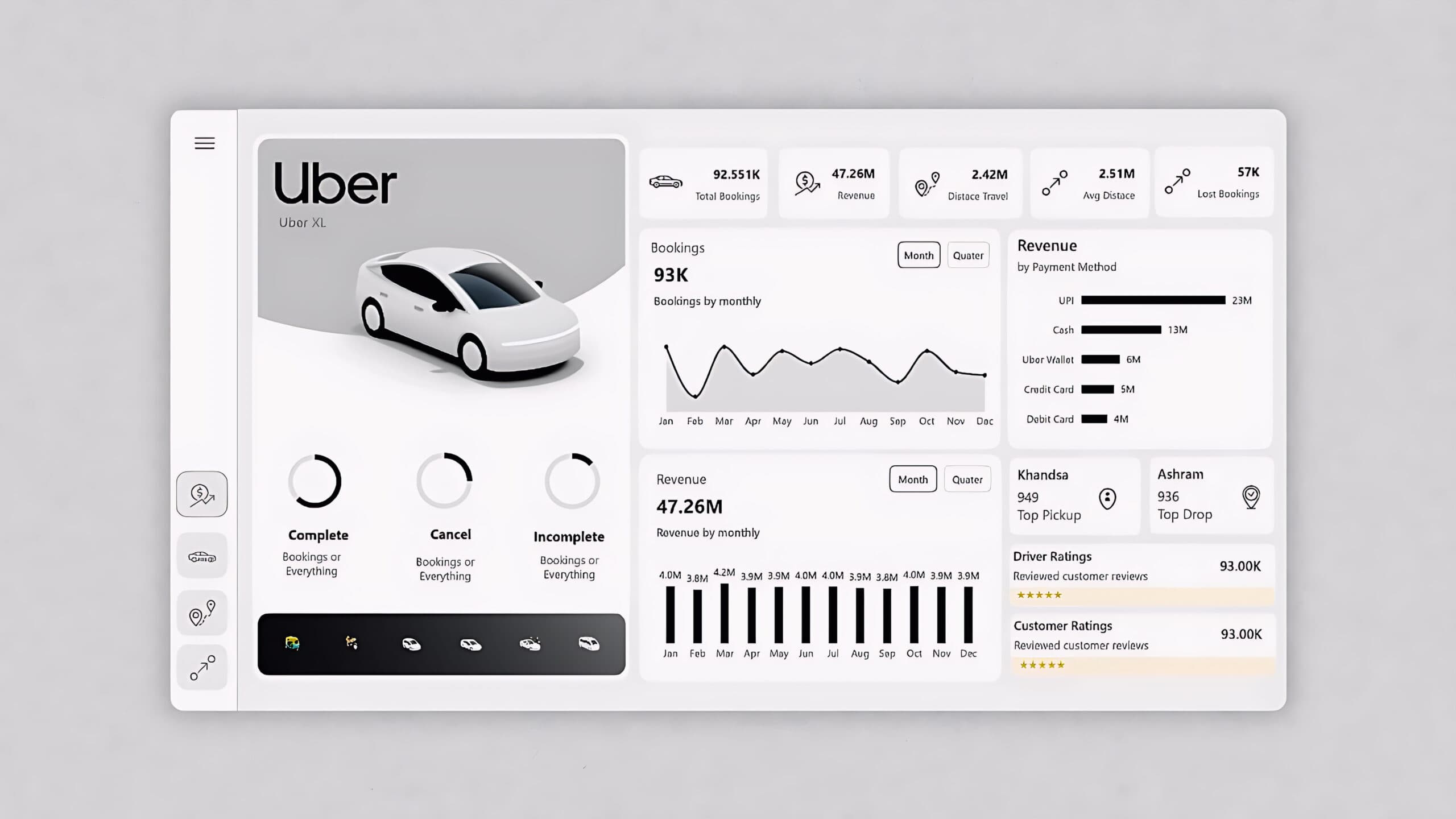
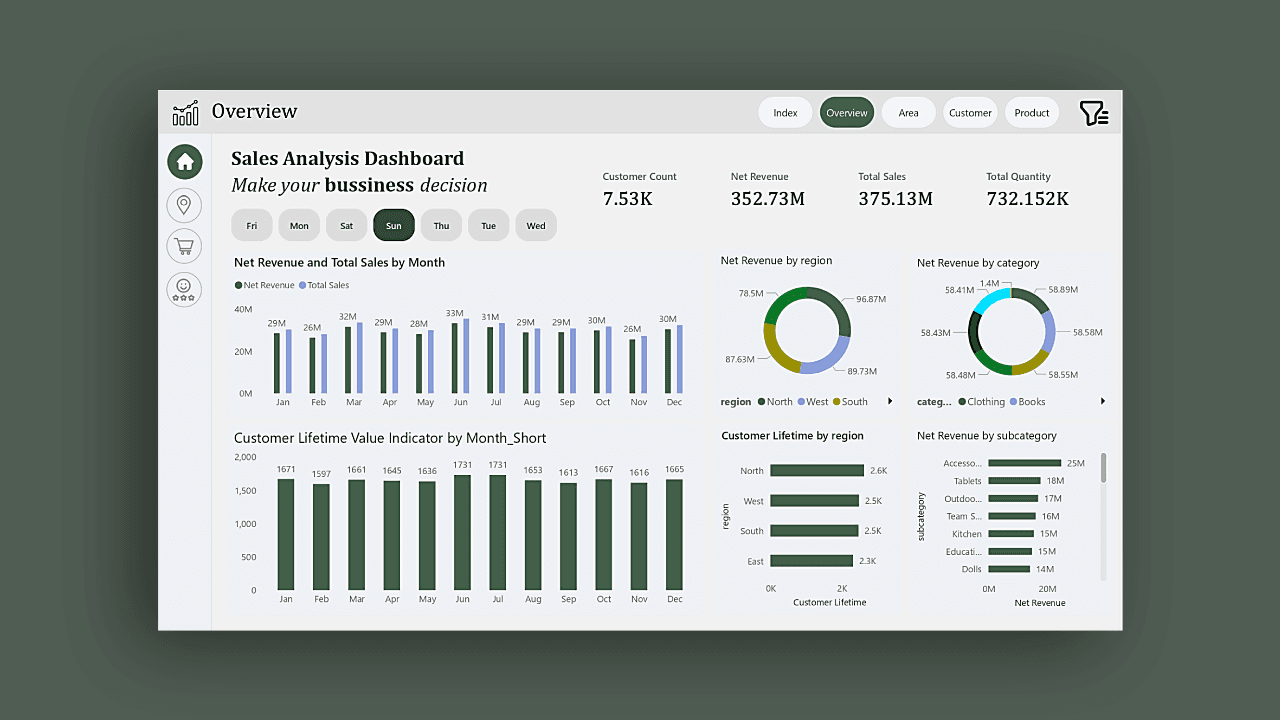
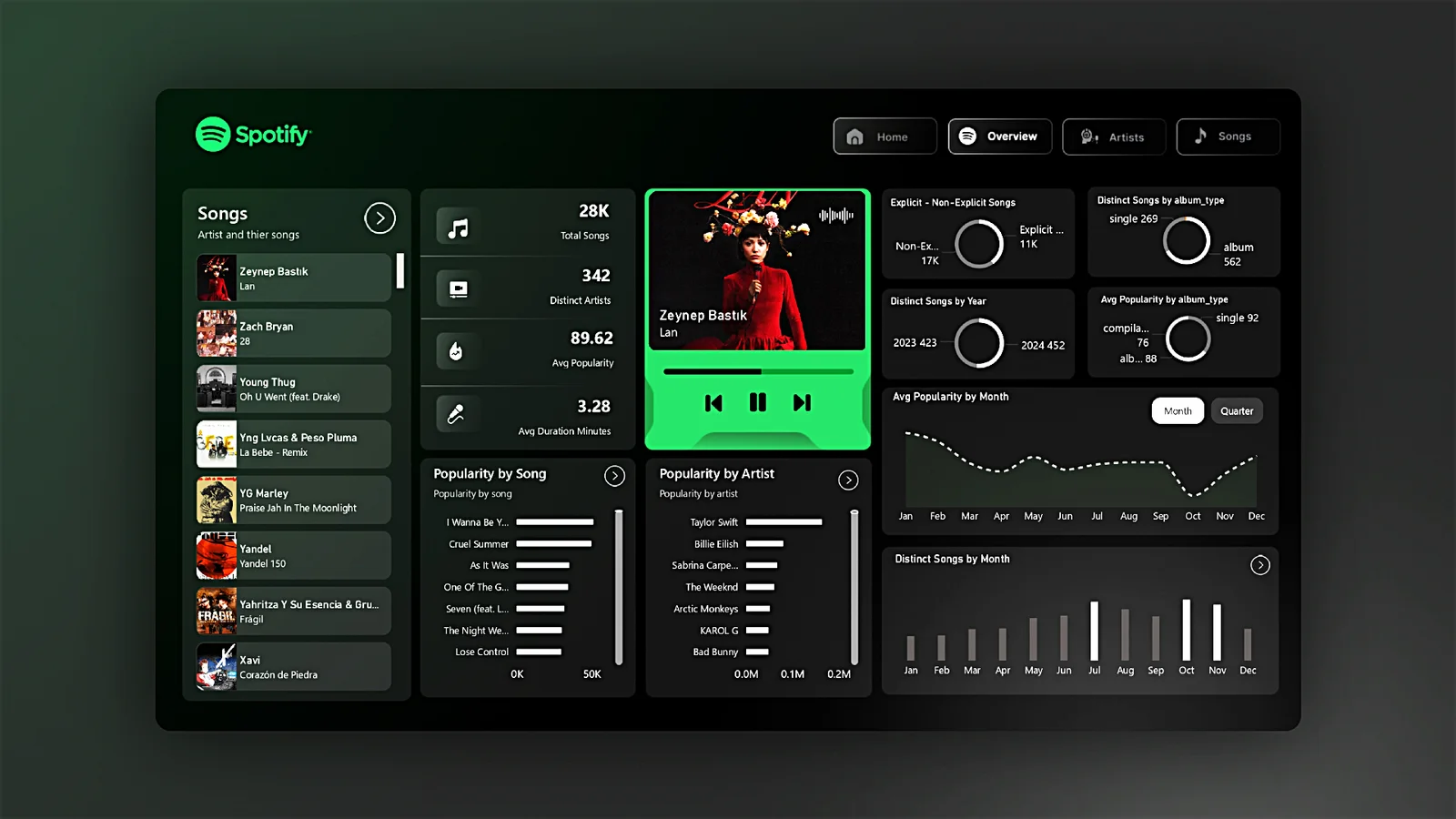
Power BI report themes let you standardize colors, typography, and visual defaults across every page of a report. Instead of manually formatting each chart, you can apply a .json theme once and instantly make your dashboards consistent, readable, and brand-ready.
In 2026, report theming matters more than ever because Power BI continues to improve modern styling and visual defaults. If you build dashboards for clients, teams, or a marketplace, theme JSON becomes the foundation of a scalable design system.
What is a Power BI theme JSON?
A Power BI theme is a JSON file that defines default formatting for your report: palette colors, text styles, backgrounds, and (optionally) visual-level formatting rules. When imported, it updates the report styling so new visuals match your design automatically.
A good theme is not just “pretty colors”. It’s a repeatable set of decisions that improves clarity, accessibility, and speed.
Why themes are a competitive advantage
- Consistency: every report page looks like one product.
- Speed: build faster by avoiding repetitive formatting.
- Brand control: enforce a client’s design system across visuals.
- Better UX: readable charts + clear hierarchy = less confusion.
- Marketplace-ready: polished PBIX templates sell better.
What you can control with theme JSON
A theme can control global defaults (colors and text) and also define styling presets for specific visuals. At a practical level, most high-quality theme systems cover these layers:
- Data colors: chart series palette used across visuals.
- UI colors: background, foreground, and neutral shades.
- Typography: font family, sizes, weights, and text classes.
- Visual defaults: common formatting rules (titles, labels, borders).
- Page feel: spacing, subtle contrasts, and readability.
The #1 mistake: themes that look good but fail in real dashboards
Many themes are built like posters: bright colors, heavy gradients, and dramatic contrast. They look impressive in screenshots but fail in real usage because dashboards are scanned quickly, usually on laptops, and often in meetings.
A dashboard theme should be designed for:
- fast scanning (clear headings and label readability)
- dense layouts (tables, matrices, KPIs)
- accessibility (color-blind friendly palette)
- printing/exporting (PDF and PowerPoint readability)
A modern starter Power BI theme (JSON)
Use this as a clean base theme for most professional dashboards. It includes a balanced palette and neutral UI styling you can safely reuse across many projects.
{
  "name": "Power BI Studio - Modern Base",
  "dataColors": [
    "#2563EB",
    "#10B981",
    "#F59E0B",
    "#EF4444",
    "#8B5CF6",
    "#06B6D4",
    "#64748B",
    "#111827"
  ],
  "background": "#FFFFFF",
  "foreground": "#111827",
  "tableAccent": "#2563EB",
  "visualStyles": {
    "*": {
      "*": {
        "title": [
          {
            "show": true,
            "fontFamily": "Segoe UI",
            "fontSize": 12,
            "fontColor": { "solid": { "color": "#111827" } },
            "fontBold": true
          }
        ],
        "labels": [
          {
            "color": { "solid": { "color": "#374151" } },
            "fontFamily": "Segoe UI",
            "fontSize": 10
          }
        ],
        "categoryAxis": [
          {
            "labelColor": { "solid": { "color": "#374151" } },
            "titleColor": { "solid": { "color": "#111827" } }
          }
        ],
        "valueAxis": [
          {
            "labelColor": { "solid": { "color": "#374151" } },
            "titleColor": { "solid": { "color": "#111827" } },
            "gridlineColor": { "solid": { "color": "#E5E7EB" } }
          }
        ],
        "legend": [
          {
            "labelColor": { "solid": { "color": "#374151" } },
            "titleColor": { "solid": { "color": "#111827" } }
          }
        ]
      }
    }
  }
}
How to apply the theme in Power BI Desktop
- Open your report in Power BI Desktop.
- Go to View → Themes.
- Select Browse for themes.
- Choose your
.jsonfile.
How to build a real “theme system” (not just one theme)
If you want Power BI Studio to become “the place where everything Power BI lives”, themes should be treated like a design system with versions and variants.
- Base theme: neutral defaults for most dashboards.
- Light theme: for clean executive layouts.
- Dark theme: for operations / TV dashboards.
- Brand packs: logo-ready palettes for client branding.
- Industry presets: Finance, Sales, HR, Supply Chain.
Theme best practices that improve dashboard UX instantly
1) Use fewer colors than you think
Most dashboards do not need 12 bright series colors. Use a small core palette and rely on neutral shades. Color should mean something.
2) Prioritize readable text over style
Text labels are scanned more than visuals in many business reports. Choose a font size hierarchy that keeps KPI cards and chart labels readable.
3) Make gridlines subtle
Strong gridlines add noise. Your eye should focus on values and patterns, not backgrounds.
4) Keep contrast accessible
Avoid light gray text on white backgrounds. If users struggle to read labels, the dashboard fails even if it looks modern.
FAQ: common Power BI theme questions
Does Power BI validate theme JSON?
Yes. Power BI validates themes using a JSON schema, which helps ensure formatting properties are correct and prevents broken themes.
Can I style specific visuals only?
Yes. Themes can include visual-level settings so that chart types (like bar charts or line charts) inherit consistent formatting defaults.
Why doesn’t my theme change existing visuals?
Themes strongly affect defaults and new visuals, but existing visuals can keep manual formatting overrides. If you formatted visuals before importing the theme, you may need to reset formatting or reapply defaults.
Explore next: build your Power BI Studio theming toolkit
Once you understand theme JSON fundamentals, the next step is workflow automation: generating theme variants, validating JSON, and creating reusable style packs for dashboards.
- Power BI Theme Generator (visual editor with live preview)
- Theme JSON Validator (schema-based validation)
- Palette Builder for dashboard-safe colors
- PBIX template marketplace packs (Sales, Finance, Executive)
If your goal is to build dashboards faster, look more premium, and stay consistent across projects, report themes are the highest ROI feature to master.